
Android storage guide
Android Storage Full? Start Here
Find the largest storage category, remove replaceable downloads and keep important files before cleanup.
You do not need to delete everything or install a cleaner first. Identify what is using space, then make one targeted change and check the result.
Quick answer
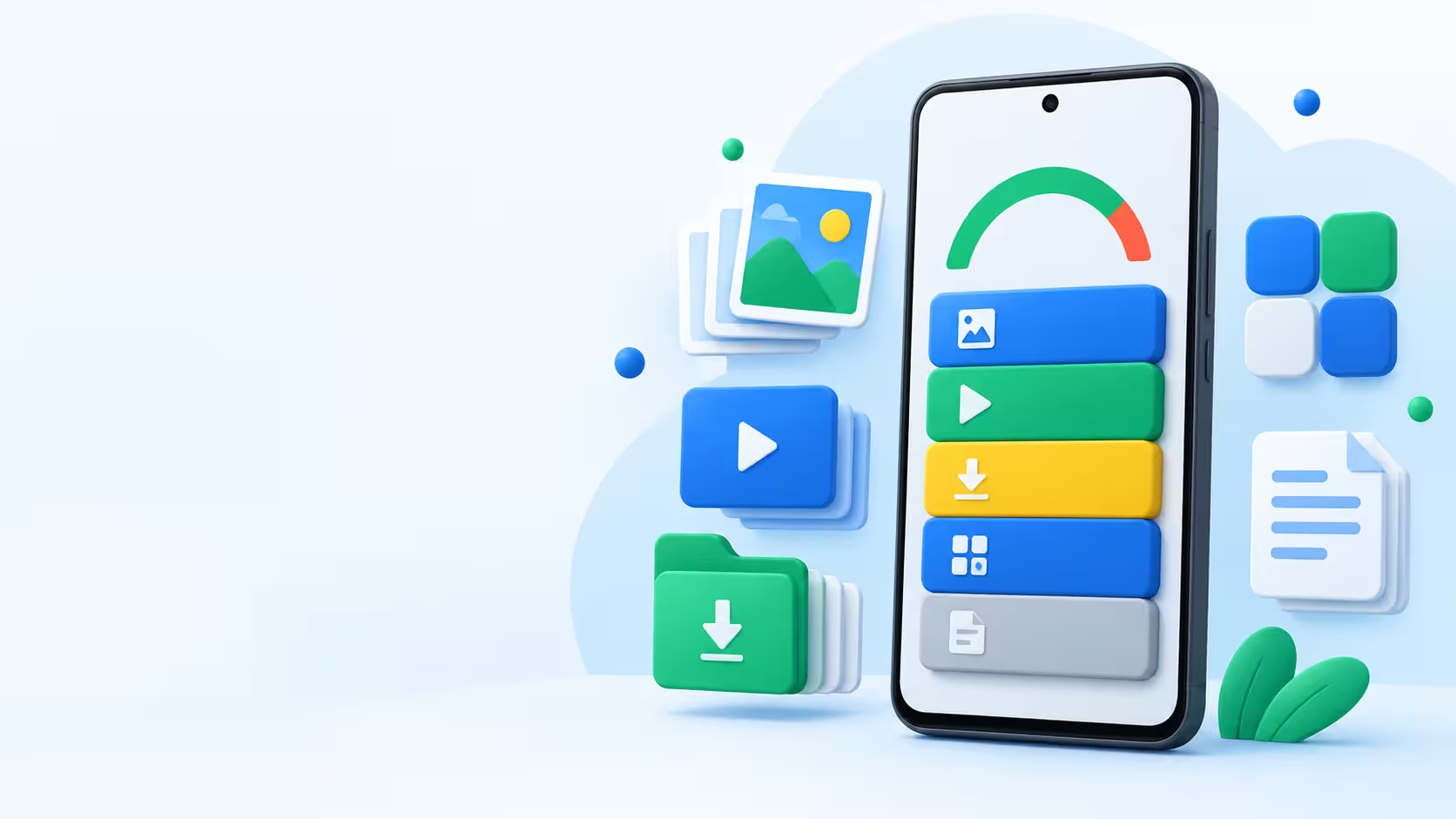
Open Settings → Storage and note the largest category. Remove unwanted downloads inside their apps first. For photos you want to keep, verify a backup before removing device copies. Menu names vary; search Settings for “storage” if needed.
Why this happens
- Photos and videos: original media, edits and exported copies.
- Chat apps: downloaded videos, documents and group media.
- Apps: installed apps plus offline music, maps and films.
- Downloads or Other: files and app-managed data that need a closer look.
What you can try before installing another app
- Record the free-space figure in Settings → Storage.
- Open your largest app and review its Downloads or Storage settings. Remove only offline content you can obtain again.
- Check Downloads in your file manager. Preview old installers and unwanted exports before deleting.
- For app caches, open Settings → Apps → the app → Storage or Storage & cache. Clear cache is not Clear storage/data; the latter may erase local work, settings and sign-ins.
- Return to Storage after it recalculates. If Photos or WhatsApp remains largest, use the relevant guide below rather than deleting unrelated files.
Google’s storage help explains cache and app-data removal.
Manage local files

For chat media, use WhatsApp Manage storage. If the category is unclear, follow the Other storage checklist. Leave unfamiliar system folders alone.
Back up what you want to keep
If the large files matter, copy them before cleanup. Finish the transfer, open the saved files at the destination and confirm the account. A computer is an alternative to a cloud subscription.

Recommended app
Google Photos
for camera photos and videos
Use automatic backup, verify it has completed, then use the documented Free up space option. Ordinary Delete is a different action. Follow the Android backup guide before clearing wanted media.
Read the Google Photos guide
Recommended app
Google Drive
for selected documents and videos
Upload chosen files and verify them online. Remove the source through the appropriate local file manager, not by deleting the saved item in Drive.
Read the Google Drive guideUse the Android photo backup steps if you are unsure which copies are safe to remove.
Quick decision: what should you keep?
Unwanted or replaceable: review and remove locally.
Important but not needed offline: keep a verified copy elsewhere, then use the right local-removal method.
Irreplaceable: consider an independent second copy. If the cloud file becomes your only copy, you have moved storage rather than retained a separate backup.
Frequently asked questions
Why did uploading not create free space?
Uploading normally leaves the original on the phone. Use the provider’s local-removal procedure only after verifying the upload.
Why is the space still occupied after deleting files?
Some files remain in Trash and app caches can rebuild. Review Trash before permanently deleting anything; then let Settings update. If a different category is large, tackle that category instead.
What if I cannot free enough space to install an app?
Use built-in settings and remove replaceable offline downloads first. You can also transfer files to a computer and verify them there. Do not erase unbacked-up photos just to install a cleaner.